
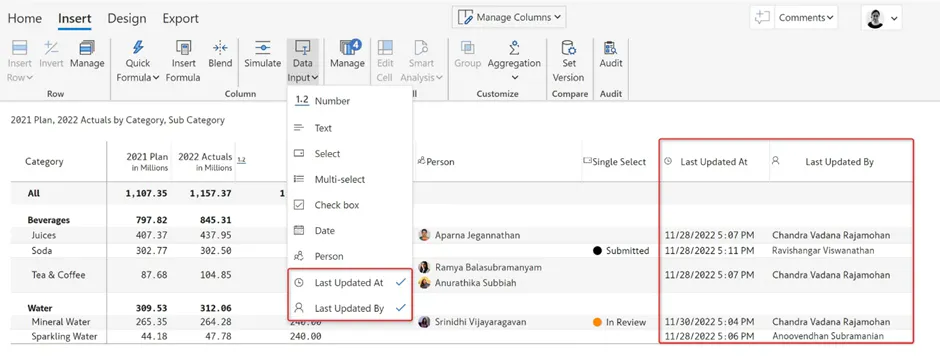
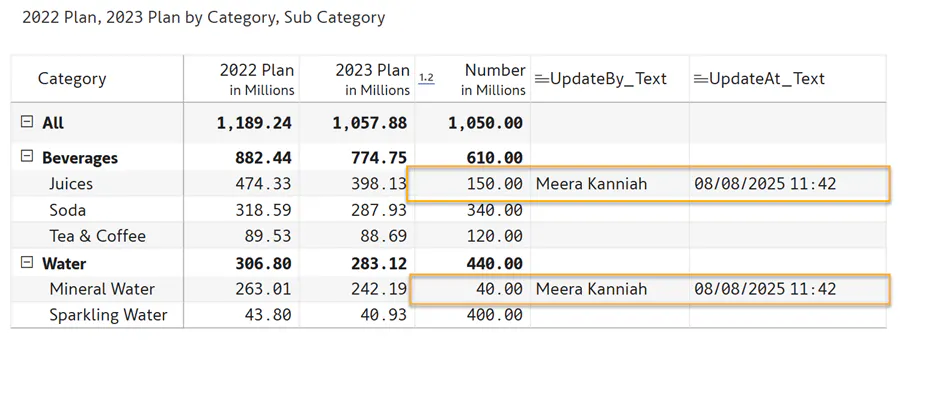
You can track changes at the row level using the two columns – 'Last updated at' and 'Last updated by' which capture metadata for changes in the data input columns.
These are enabled once you add a data input column and can be found in the data input dropdown. Select/deselect to show/hide columns. They can also be enabled/disabled from the ‘Manage columns’ dropdown.
For more information , refer Writeback Matrix features | Inforiver
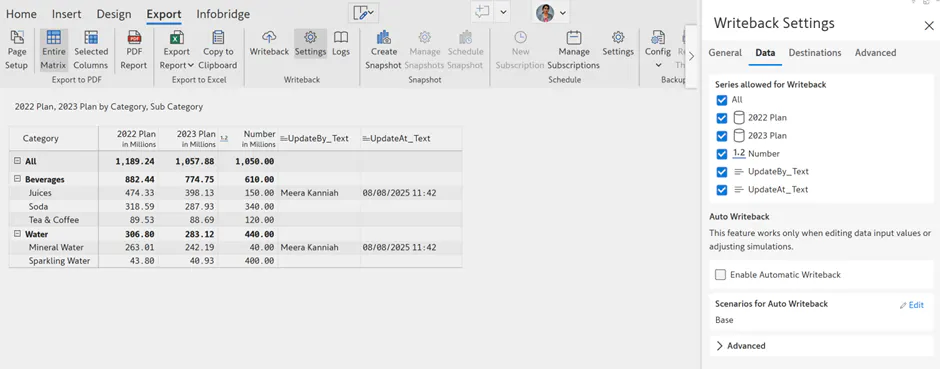
We can’t writeback directly to the Last updated At and Last Updated By field, as these are Visual fields.
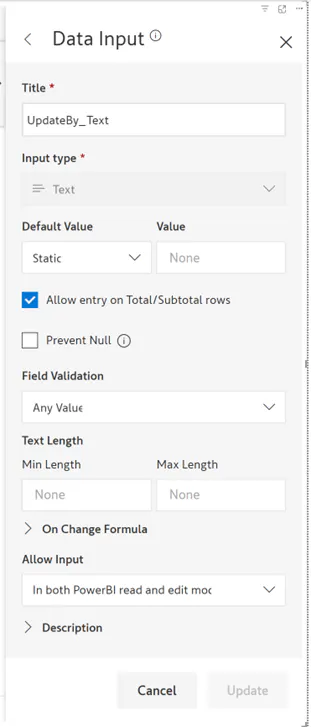
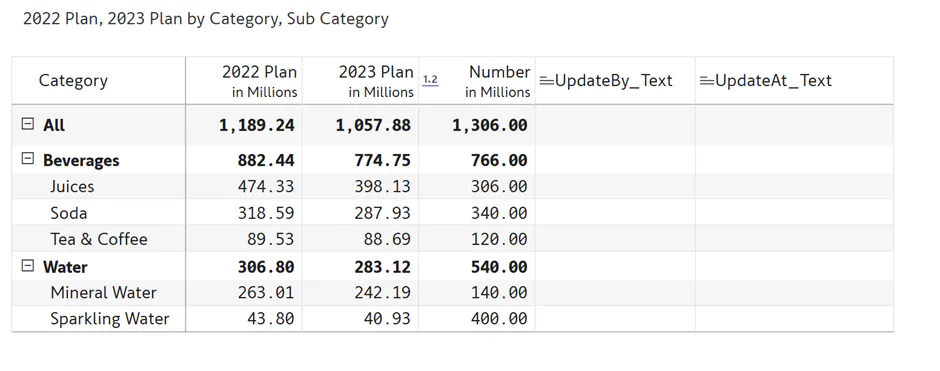
In order to capture this data, we need to create a Text Data Input column with reference to these fields.
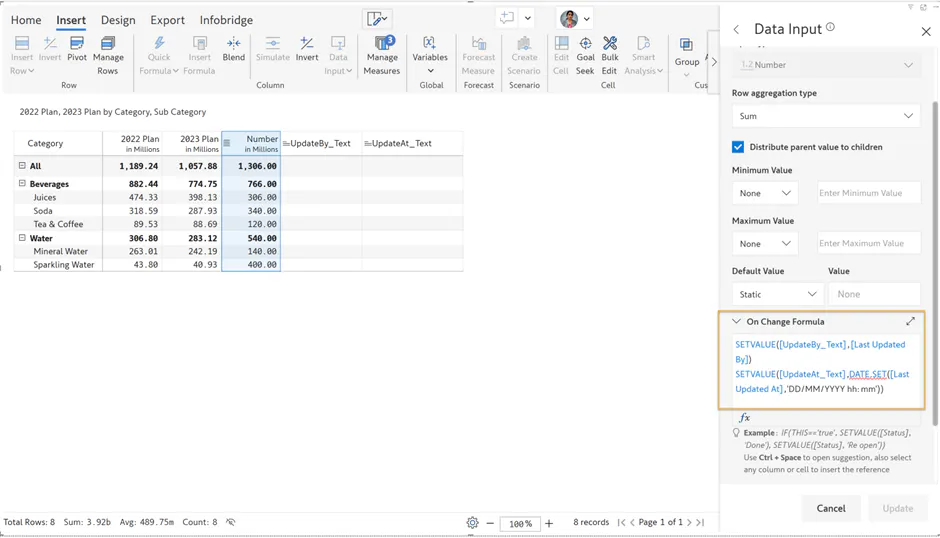
In this section, you'll need to update the On Change Formula.
SETVALUE([UpdateBy_Text],LAST_UPDATED_BY)
SETVALUE([UpdateAt_Text],DATE.SET(LAST_UPDATED_AT,'DD/MM/YYYY hh:mm'))
Frequently Asked Questions
1. Are the two fields, LastUpdateBY and AT, available in the Reporting Matrix?
Ans: No. These fields require login details and are only available in the Writeback Matrix and EDITable.
2. Can we use the same steps to write back these two audit data input columns in the Editable matrix?
Ans: No. The same steps cannot be used, instead please refer Editable – Logging and Writeback Last Updated Metadata to database.
3. Will it reflect changes made in slicer selections?
Ans. Yes