
Inforiver Scheduled Writeback feature to automate data writebacks at predefined intervals eliminating manual effort and ensuring timely updates across your reports.
As this scheduled writeback allows you to configure a time-based trigger that automatically pushes data from your Inforiver visual back to the destination (e.g., database, SharePoint, OneDrive). Once set up, Inforiver handles the rest & no manual clicks required.
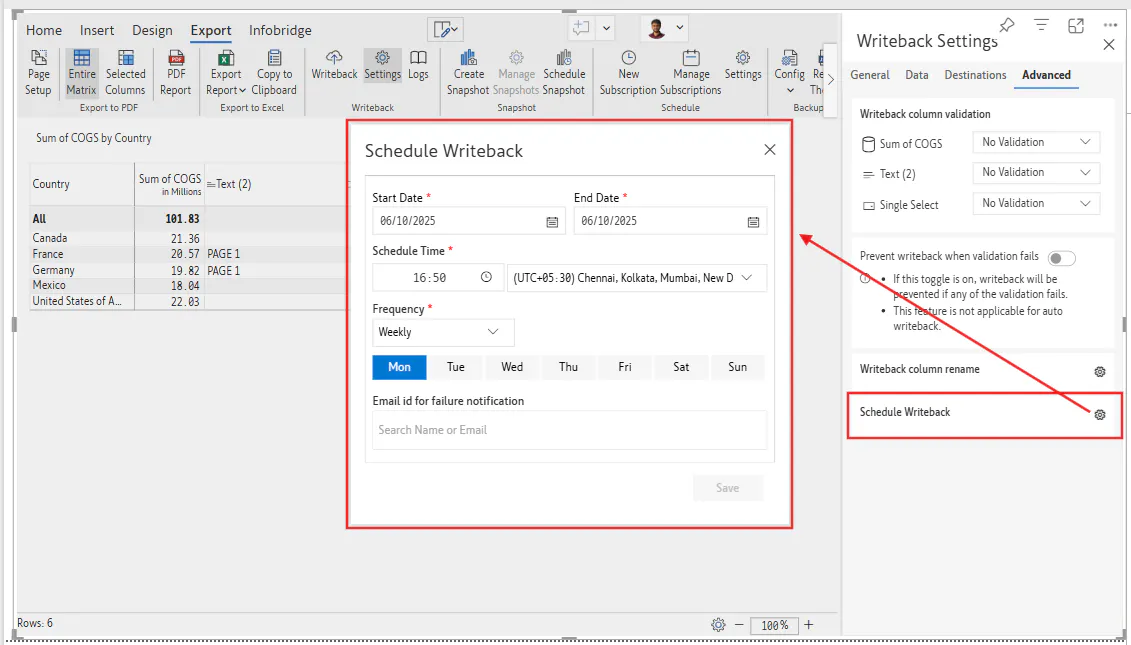
To activate the Scheduled Writeback feature in Inforiver, ensure the following conditions are met:
Publish to Power BI Service: This feature is only available after the report is published to the Power BI Service. It is not accessible in Power BI Desktop.
Workspace Location: Scheduled writebacks must be configured in a shared or common workspace. Reports saved in "My Workspace" are not supported.
Writeback Destination Added: The Scheduled Writeback option becomes available only after a writeback destination has been configured within the visual.
Monitoring & Logs: To track execution history and troubleshoot issues, navigate to the Admin Console and click on Writeback - Logs. This section provides detailed logs and status updates for each scheduled writeback.
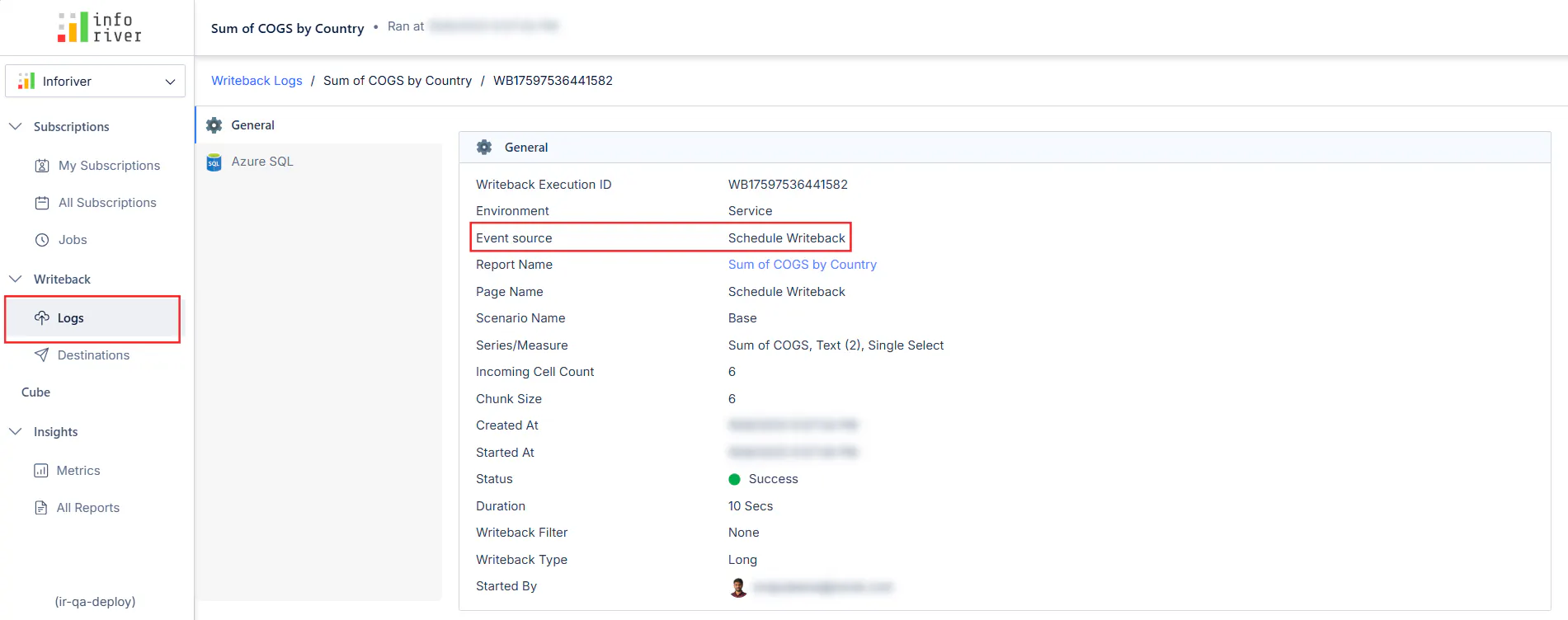
Kindly refer the docs: Schedule Writeback – Advanced Settings
Frequently Asked Questions:
What happens if a scheduled job fails?
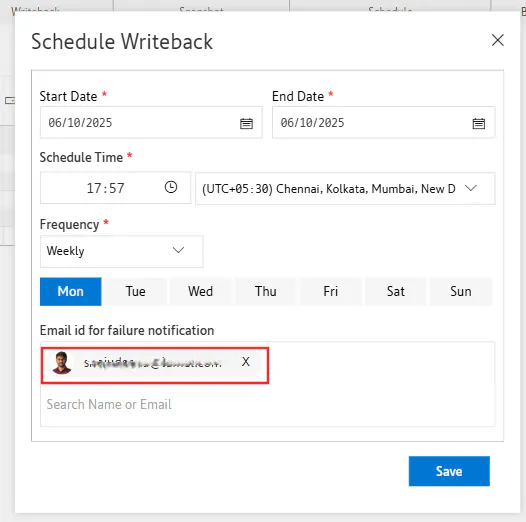
You can configure email notifications to alert specific users when a scheduled writeback fails.
Can I view past writeback attempts?
Yes. All execution logs are available under Writeback Logs in the Admin Console.
Do I need to reconfigure schedule writeback after detaching a visual?
Yes. Once a visual is detached, you’ll need to reconfigure the writeback destination and reschedule the job.