Gantt Chart is an excellent feature in Analytics+ to visualize task schedules, identify dependencies, allocate resources, and track deadlines. This blog shows how the users can distinguish the color of the Parent and Child bars in Gantt chart when there are more than 2 Axis items step by step.
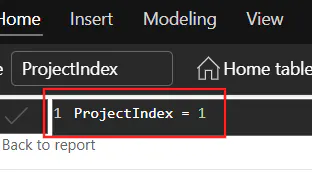
Step 1 - Create a Native Power BI Index measure for the Parent.
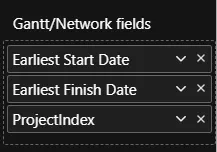
Step 2 - Add "ProjectIndex" measure to the Gantt/Network field, as shown below.
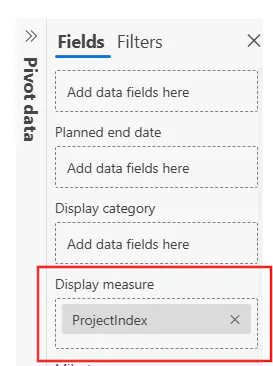
Step 3 - Go to the Pivot Data section (on the top of the visual) and add ProjectIndex to the Display Measure field.
Step 4 - You will get a ProjectIndex column, kindly make a note of the index as this will be used in the Conditional Formatting. In my case, I want to conditionally format the Parent (E.g., Contracts, Design). So, I make a note of the ProjectIndex - 4.
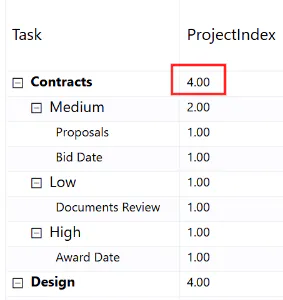
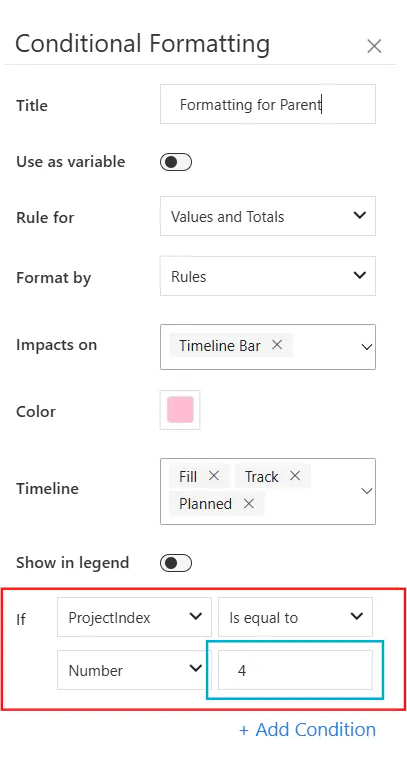
Step 5 - Navigate to Conditional Formatting and create a rule based on "ProjectIndex" as shown below. I am using "4" in the below example as that is the ProjectIndex for the Parent, as mentioned in Step 4. Kindly check the ProjectIndex column and create the conditional formatting rules accordingly.
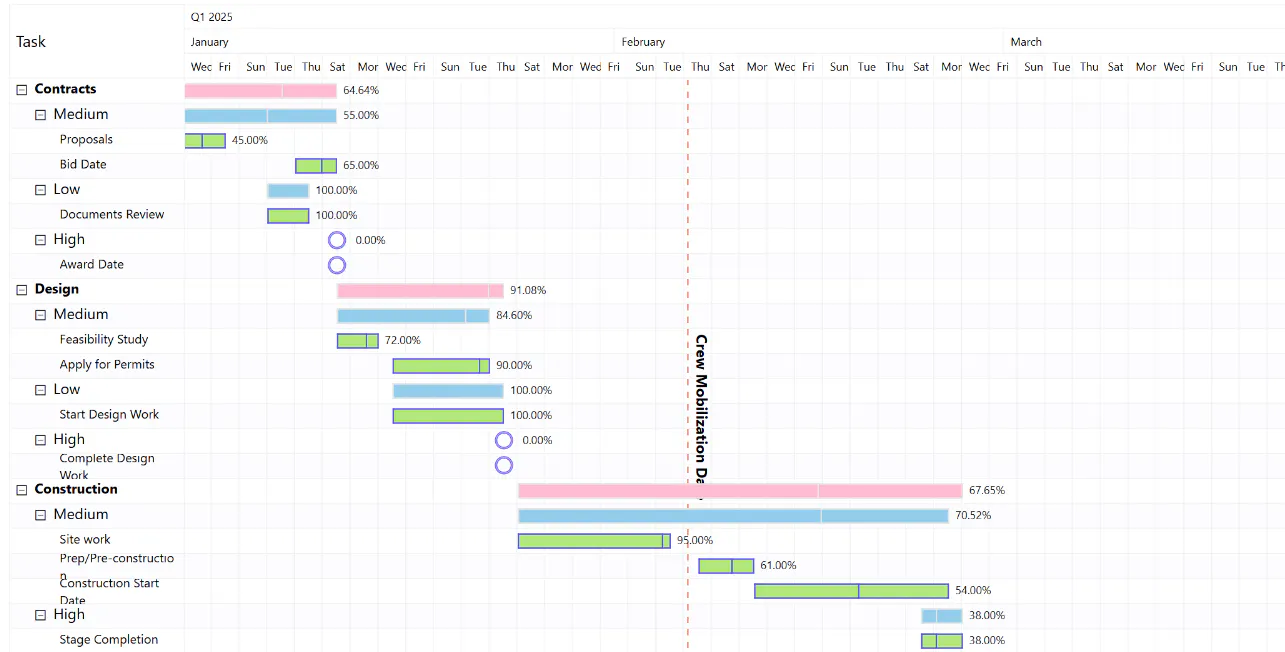
Result - Now, the Parent bars will be distinct from the Child bars, as shown below.
We hope this post has shed some light on distinct color formatting in Gantt Chart.
FAQs
1) How do I disable the ProjectIndex column? I do not want it appearing in my visual.
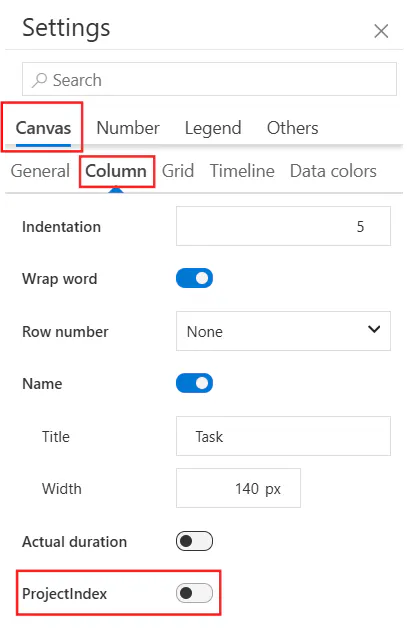
If you wish to hide the ProjectIndex column, you can go to Settings > Canvas > Column and disable the "ProjectIndex" toggle.