
Conditional formatting is a powerful way to make your data more visually appealing and easier to interpret. By adding custom colors, icons and other visual elements, you can instantly highlight patterns and draw attention to the insights that matter most.
Where can you use it?
Conditional formatting works with Hierarchy filters and Date filters (Month Range and Month). These options give you flexibility to make your filters not just functional, but visually intuitive.
How to enable it?
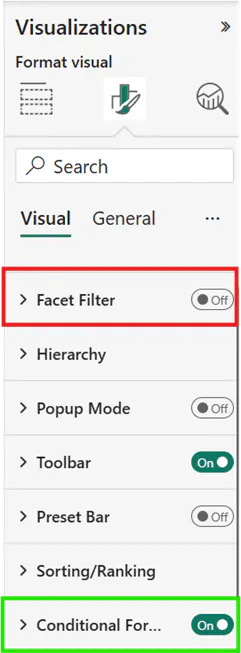
Navigate to the Format tab in the Visualizations pane.
Turn off the Facet filter toggle.
The Conditional formatting section appears automatically.
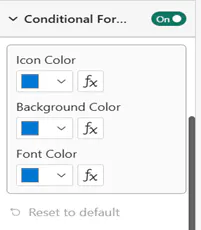
You can apply formatting based on Icon Color, Background Color or Font color.
Let’s walk through a quick example:
I’m using a Hierarchy filter and would like to apply conditional formatting based on the Revenue generated by different cities for each hotel category.
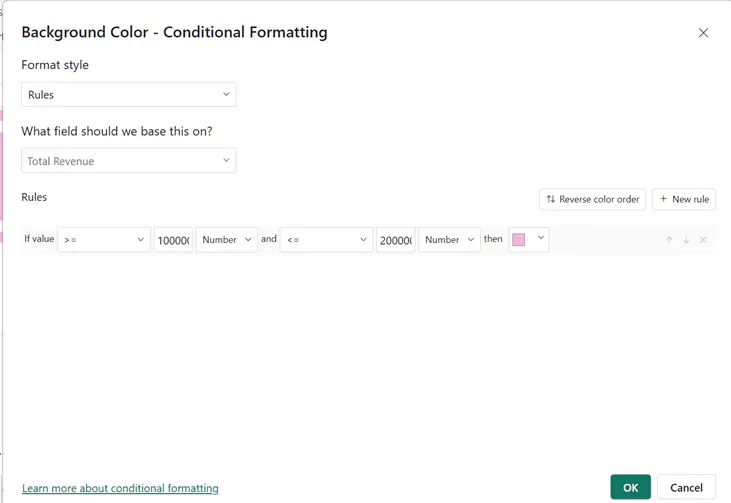
Click the fx button to define the conditions and formatting rules.
Next, apply a Background color to items where the revenue is greater than 1 million but less than 2 million and click OK.
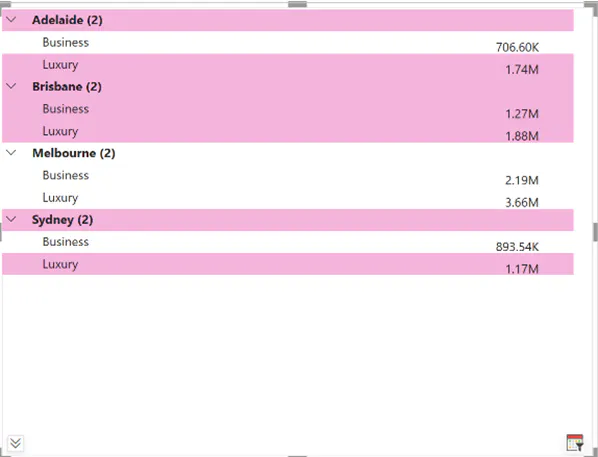
As shown in the screenshot below, the hotel categories and cities are highlighted with the background color according to the applied rule.
Now let’s integrate this conditional formatting rule into presets for quick and easy access in the visual.
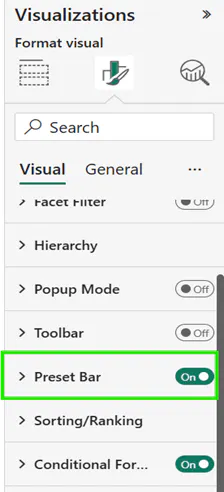
In the Format Visual tab of the Visualization pane, turn on the Preset Bar toggle as shown below.
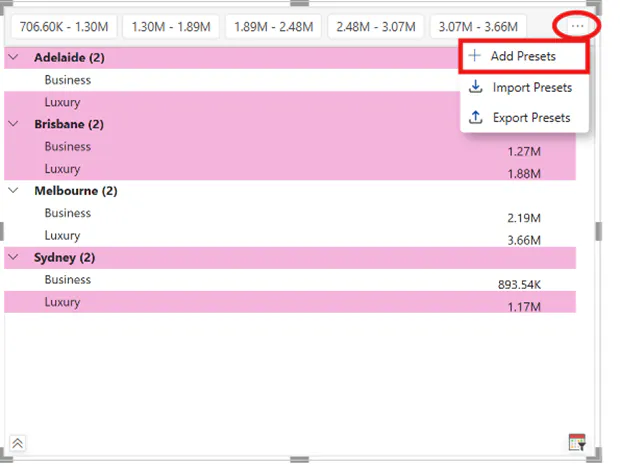
Next, click the three dots in the top right corner of the visual and choose ‘Add Presets’.
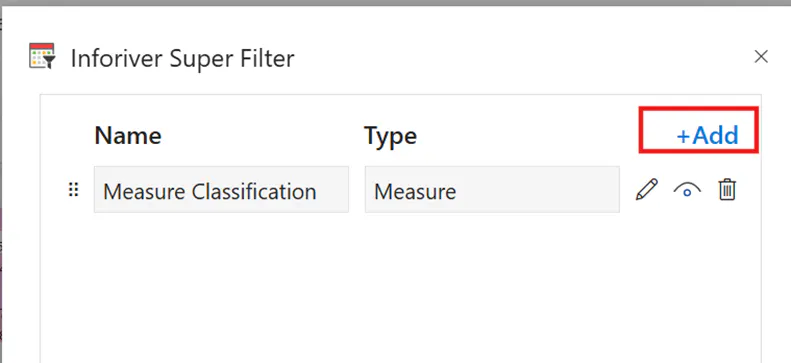
In the pop-up, click the Add icon to include the Conditional Formatting rule as a preset.
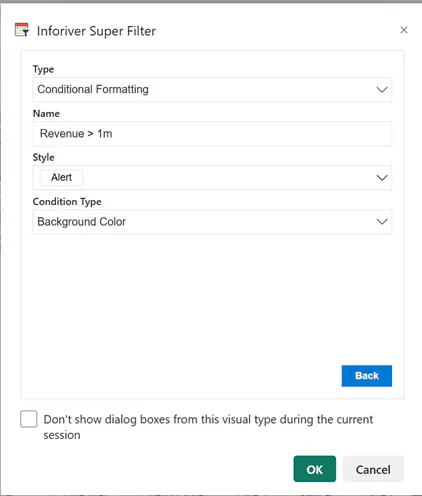
In this example, I’m filtering cities and hotel categories where revenue is between 1 million and 2 million.
Set the Type to ‘Conditional Formatting’. Note that this option appears only if conditional formatting has already been applied to the Filter.
Next, choose ‘Background Color’ as the Condition Type, assign a name to the preset, and click Ok.
The Conditional Formatting for Background Color is now visible as a Preset in the Super Filter visual, as highlighted in the screenshot below.
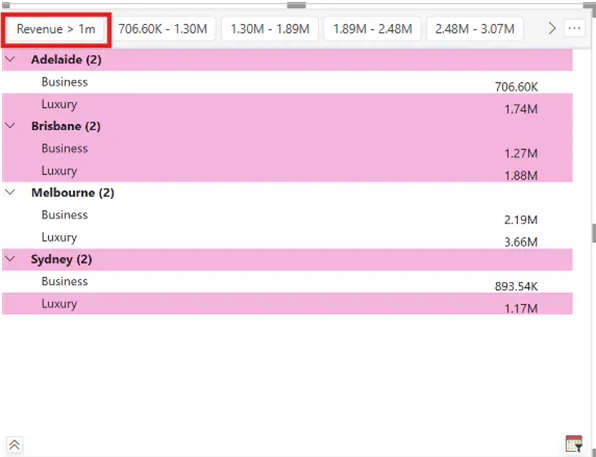
When you click this preset, it filters and highlights all values with Revenue between 1- 2 million.
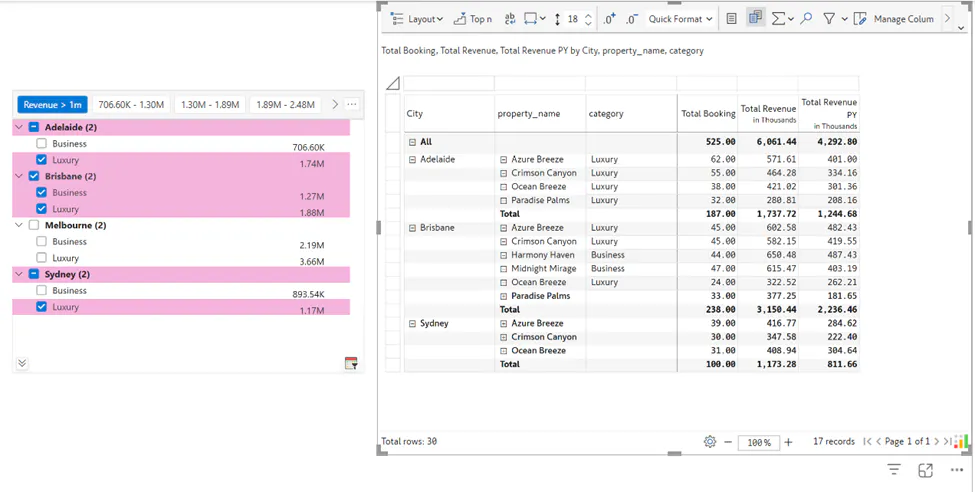
Thus, we’ve successfully applied conditional formatting in Super Filter visuals and seamlessly integrated these rules into presets for quick and easy access.
FAQ:
Which filters do not support conditional formatting?
Conditional Formatting is not supported in Facet filter, Alpha Numeric filter and Numeric filter.