
Conditional formatting is often used to highlight high or low values. Instead of using static thresholds, you can take this a step further by creating smart, dynamic rules. These rules compare your data against benchmarks that update automatically based on filter selections, giving you a more accurate and context-aware highlights every time the data changes.
Let’s look at a simple use case.
Imagine you have a report that displays Cost, Revenue, Margin% and Average sales for each product. Now, you want to highlight the products whose Average sales exceed the Total Average Sales in green and show the remaining values in red. You want this comparison to update automatically whenever a user changes the month filter.
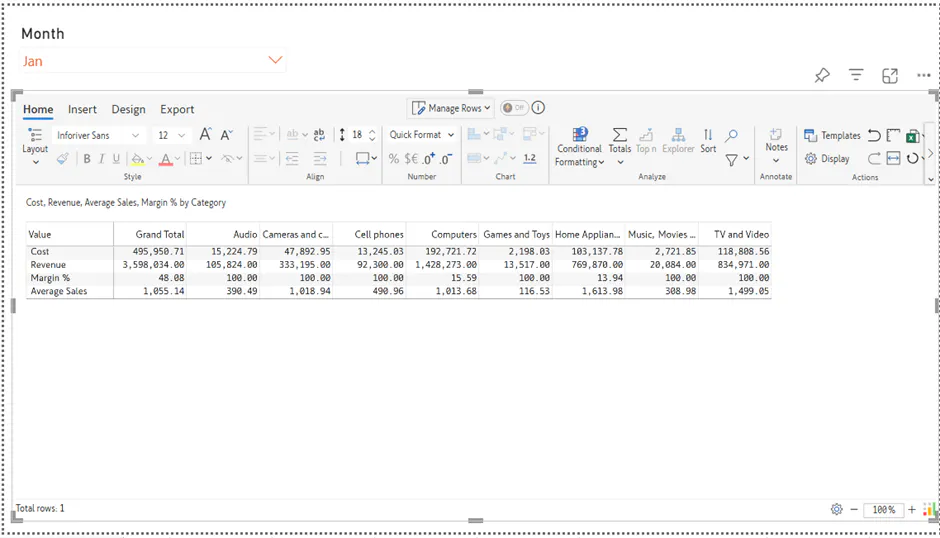
To achieve this, follow the below steps.
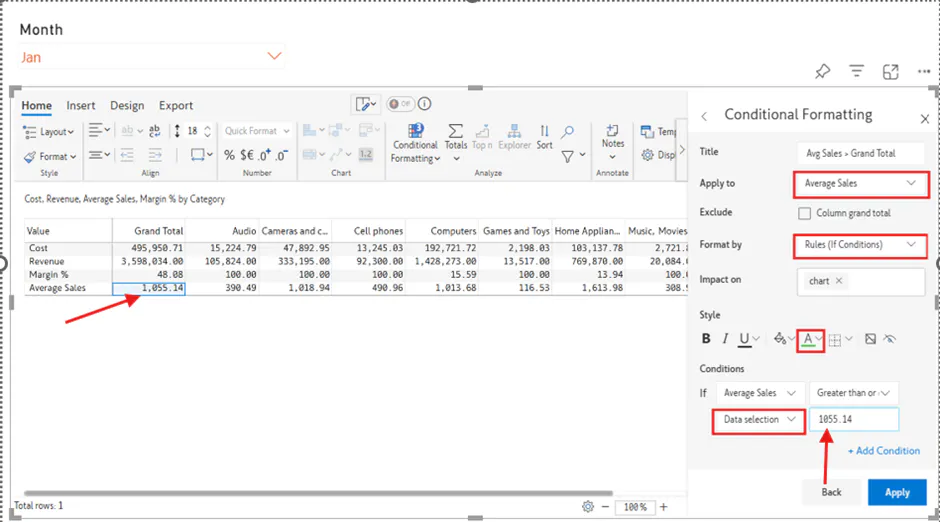
Go to Home tab -> Conditional formatting -> click on Create rule.
In the ‘Apply to’ field select the measure that you would like to highlight.
Under Format by choose Rules (If Condition).
In the Conditions section, configure the rule by setting Average sales to Greater than or equal to, and choose Data selection from the dropdown. This option allows you to use a cell value in the condition.
Next, click inside the Select value from field and choose the Grand total cell that corresponds to Average Sales in your report. The selected cell value will automatically populate in the rule configuration.
I have also set the highlight text color to Green.
Click on ‘Apply’
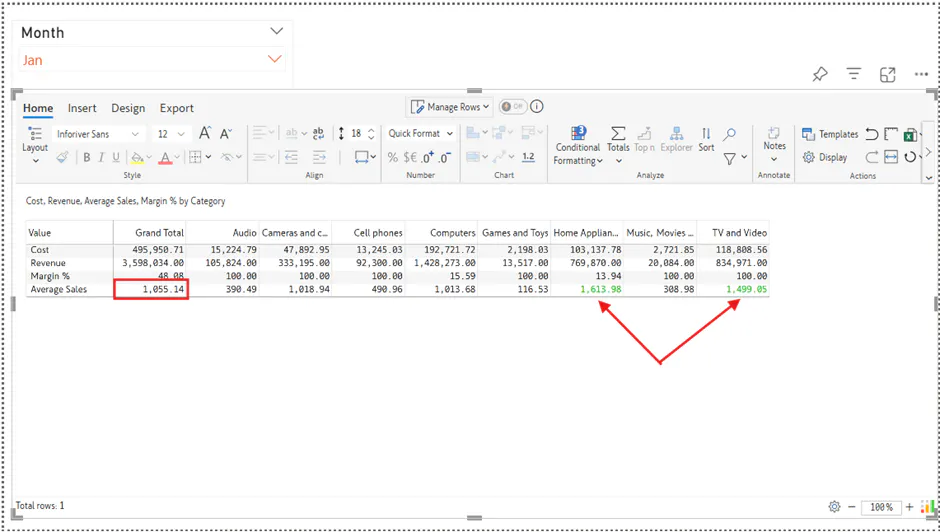
As shown in the screenshot below, for the month of January, any product whose Average Sales value exceeds the Grand Total value is highlighted in green. In this example, Home Appliances and TV and Video are highlighted.
Similarly, let’s create another dynamic conditional formatting rule to highlight the Average Sales values in red when they fall below the Grand Total value.
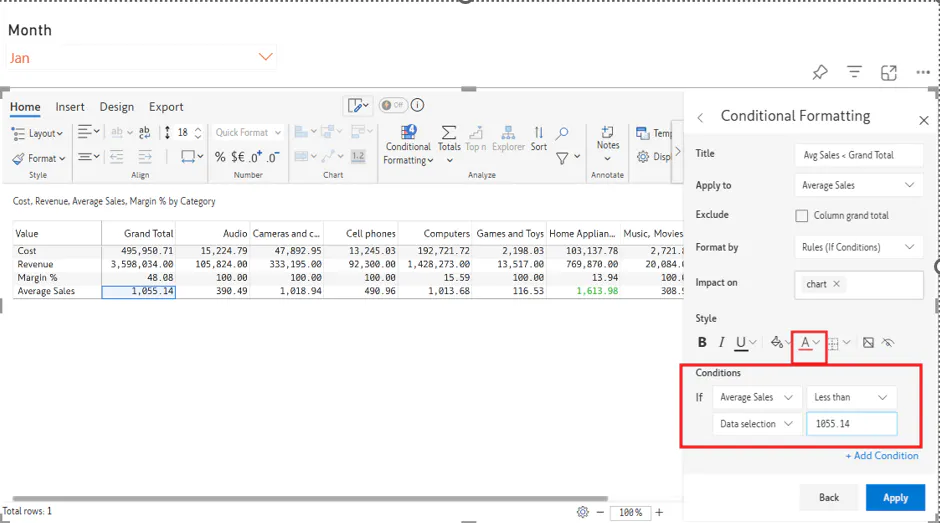
As shown in the screenshot below, the values that fall below Grand Total are now highlighted in red.
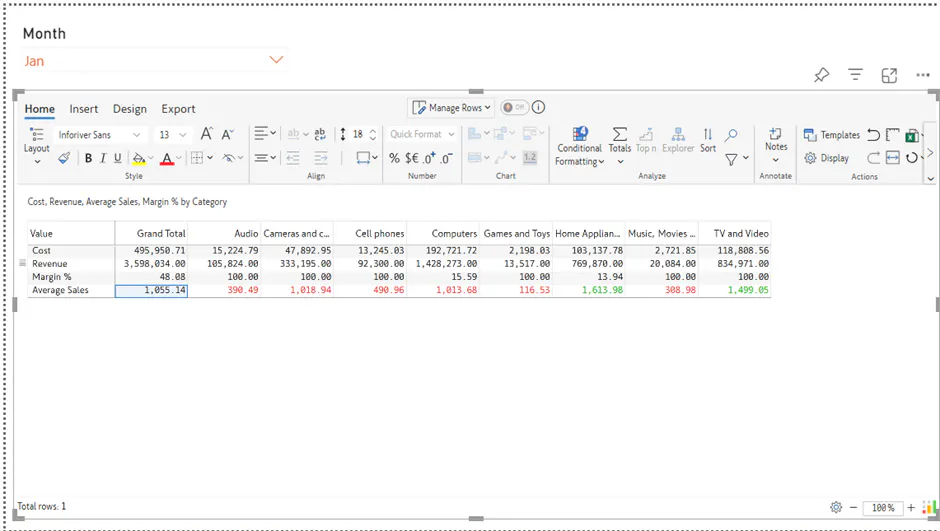
Now, when the Month filter is changed from January to December, the values are dynamically highlighted based on the updated Grand Total cell value, as shown in the screenshot below.
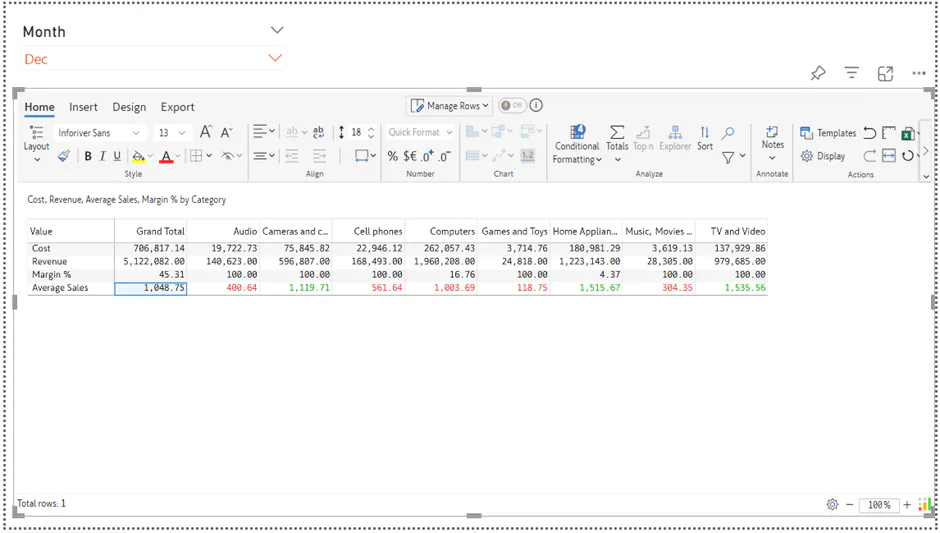
Thus, incorporating dynamic conditional formatting not only enhances visual clarity but also ensures that insights remain relevant as users interact with filters in the report.
Frequently asked questions:
Is it possible to apply conditional formatting based on a selection during runtime?
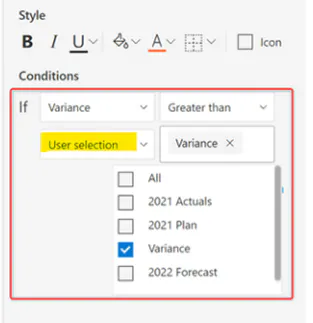
Yes, it is possible. In the Conditions section, configure the rule by selecting ‘User selection’ from the dropdown, as shown below.
You can find more details in our User Guide here.