
In Inforiver Analytics, the Data Table allows you to view both your charts and the underlying data within a single window, making it easier to correlate the data with the visualizations.
To show rows in the Data Table based on the legend field, please follow these steps:
Enable the Data Table:
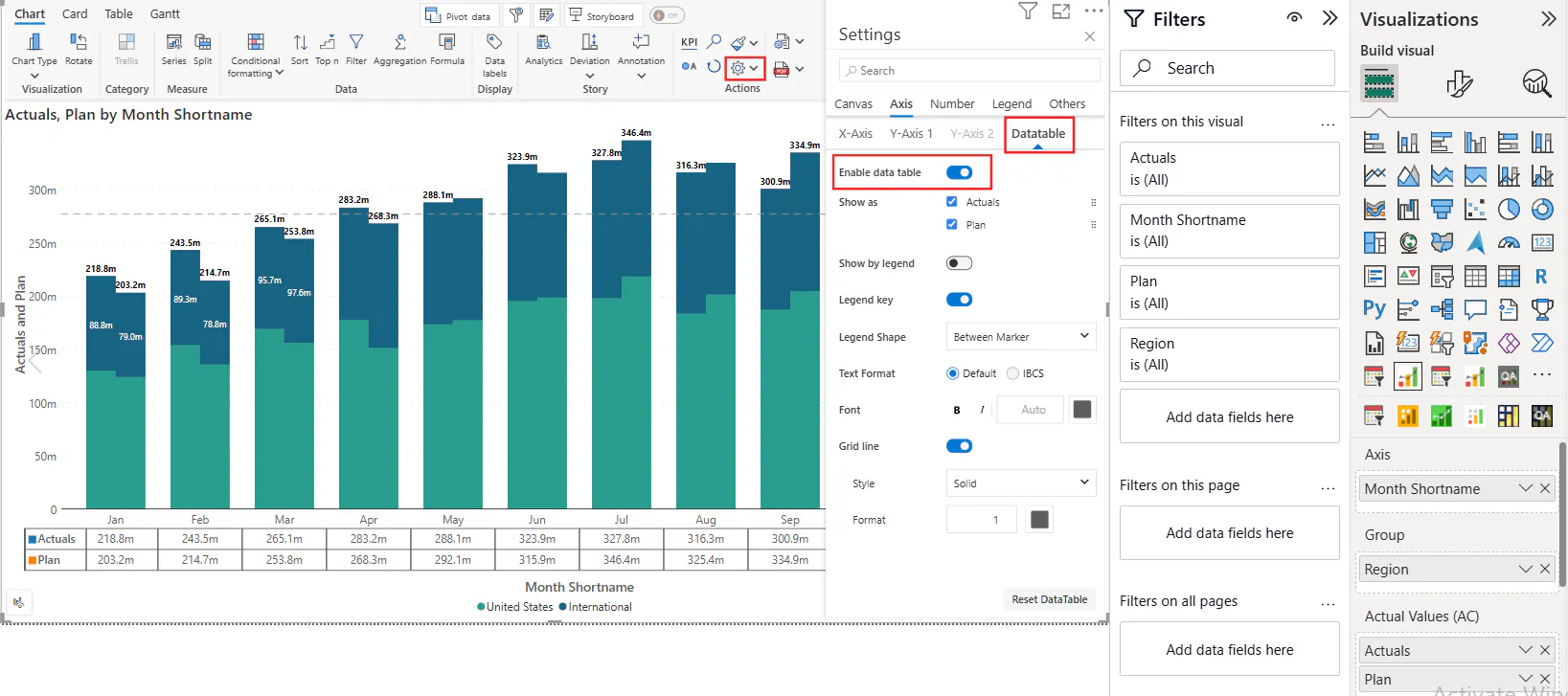
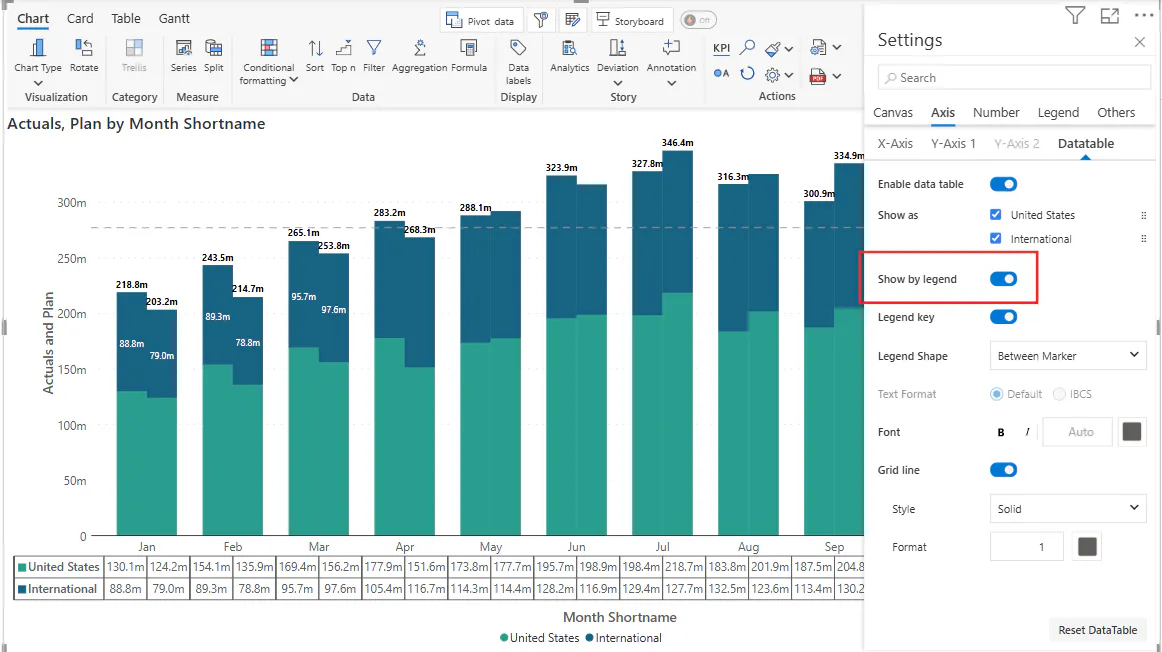
Navigate to the Actions Panel → Settings → Axis → Data Table, and enable the Data Table option as highlighted in the screenshot below.
Place the Legend Field:
Ensure that the legend field is added to the Legend Panel under the Pivot Table settings, as shown in the screenshot.
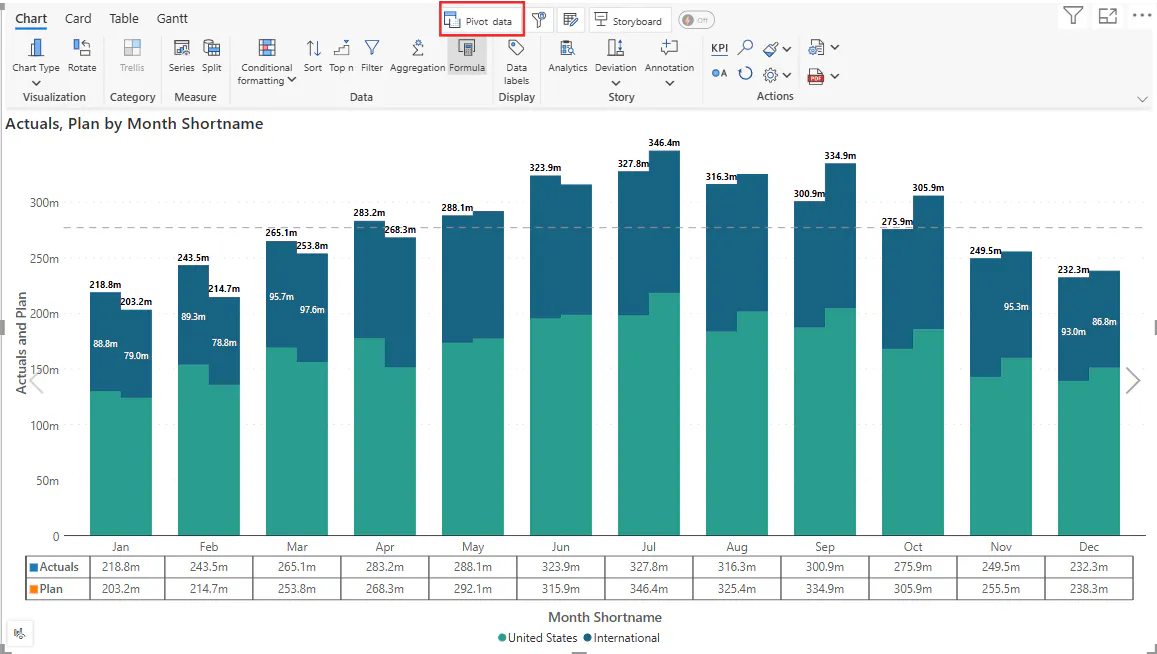
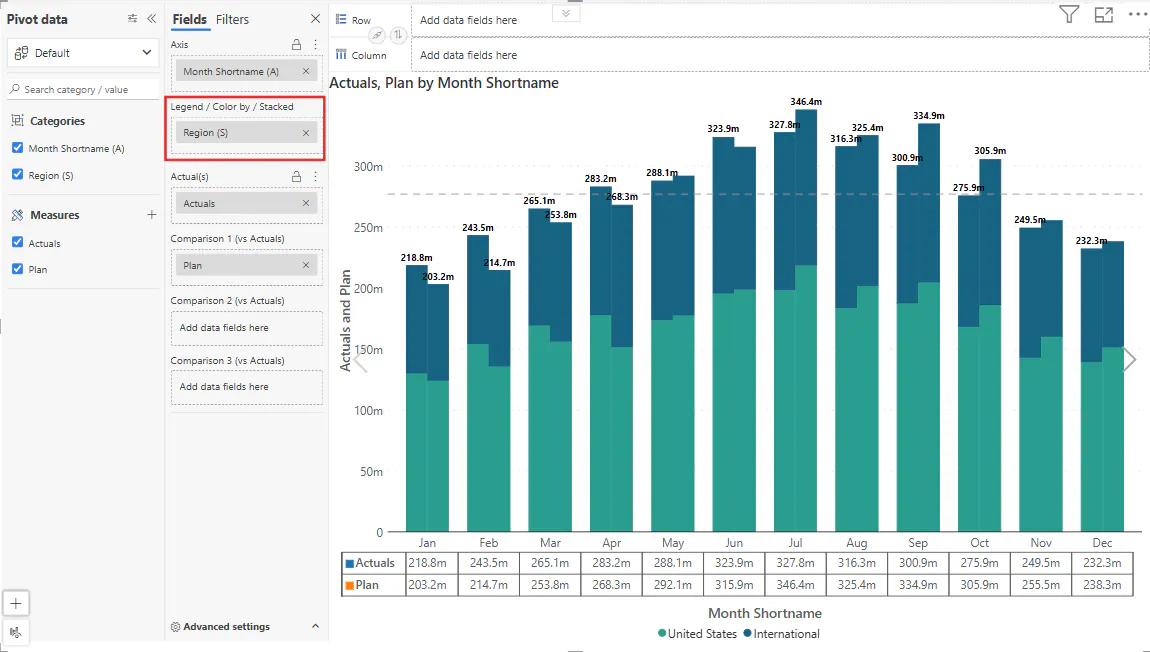
3. Display Rows Based on Legend:
By default, the Data Table displays rows based on measures. To display them based on the legend (or stacked group), enable the "Show by Legend" option under Data Table settings.
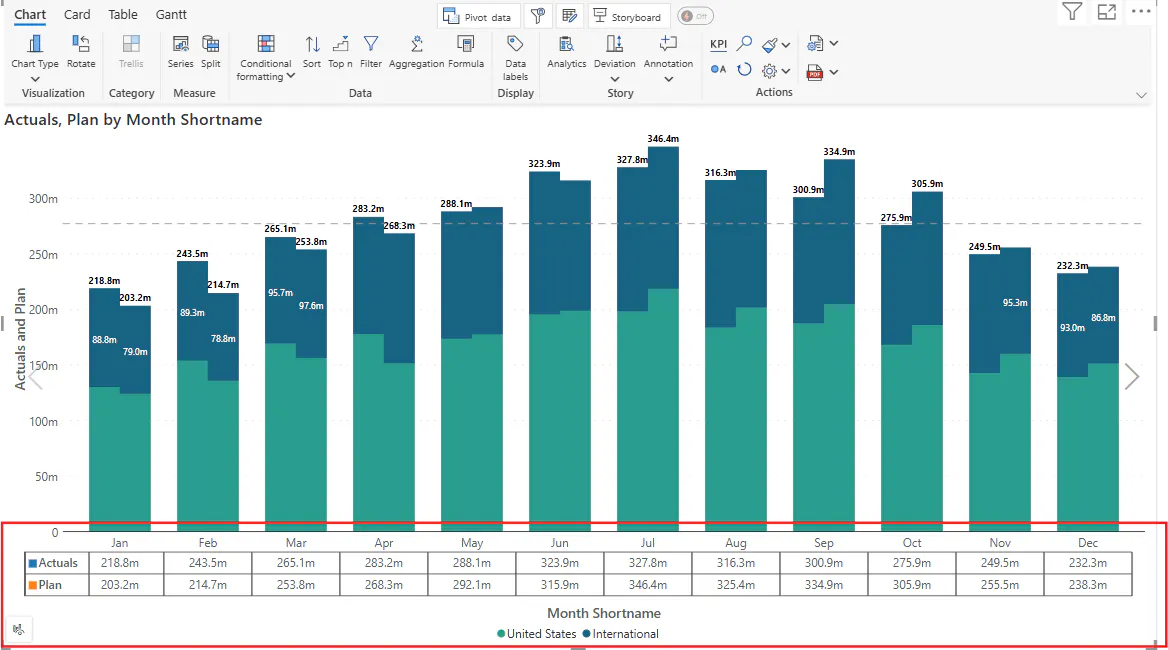
After enabling show by legend
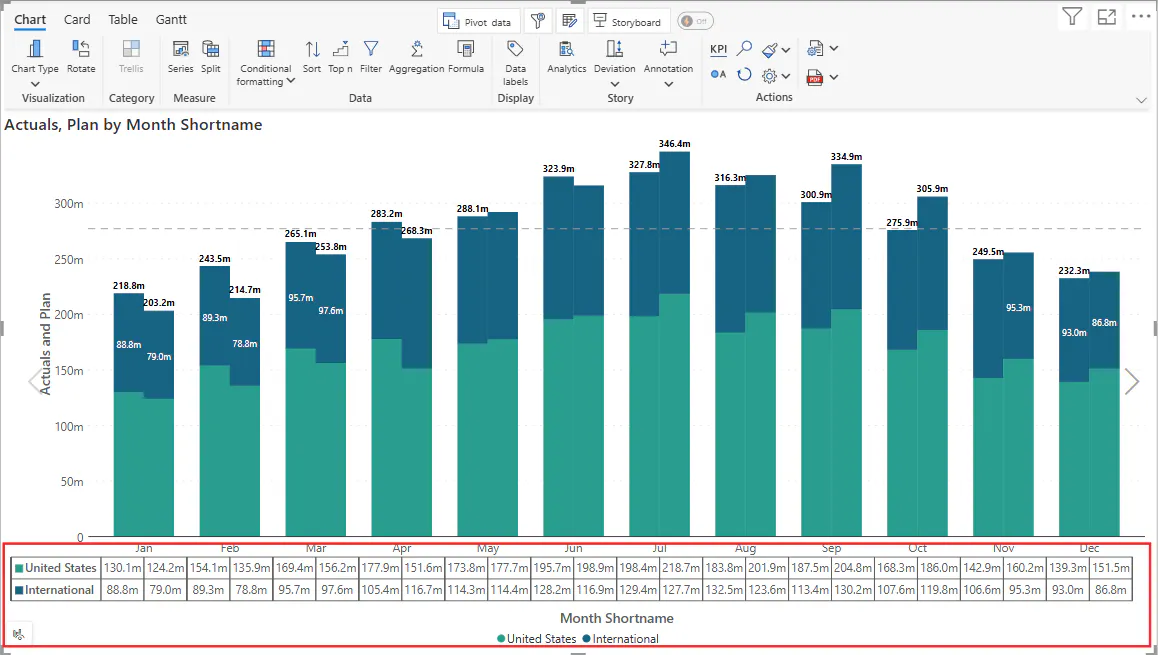
Following these steps will allow the Data Table to reflect row-wise grouping based on the legend field.
FAQs:
What type of charts are applicable to use this feature?
Stacked column/line/area, cluster column/line/area, Stacked column + line/area , stacked Multiple axis chart, Stacked waterfall, Stacked Marimekko, Ribbon chart, 100% stacked column/stacked Marimekko/stacked line/area