
What is the Scroll bar setting and how to access it?
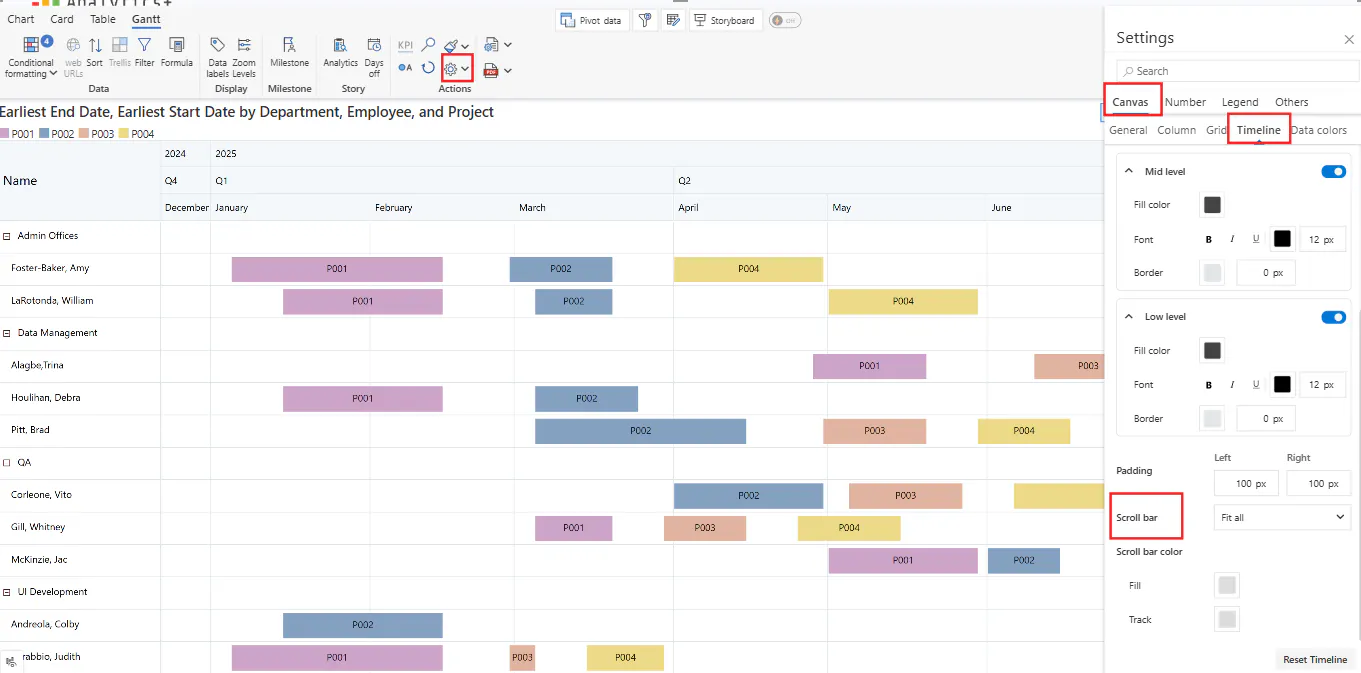
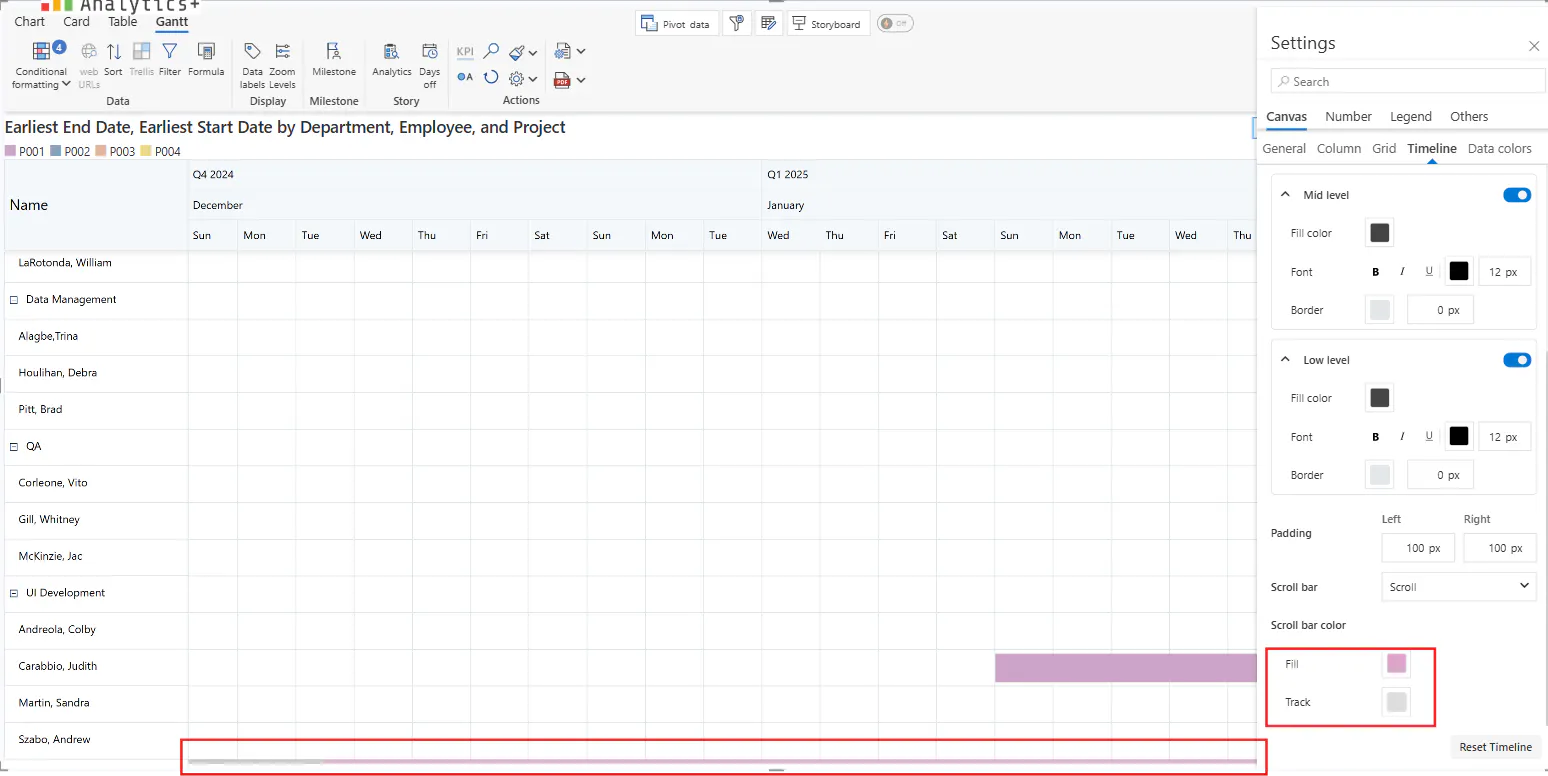
The Gantt Chart in Analtyics+ enables the users to choose how they want to display and fit the chart to their canvas using the Scroll bar setting. This setting can be found in Display -> Canvas -> Timeline -> Scroll bar, as shown below.
What are the different option under Scroll bar setting?
The Scroll bar setting has 3 options - Fit all, Scroll and Zoom Unit. Let us explore them one by one.
i) Fit all:
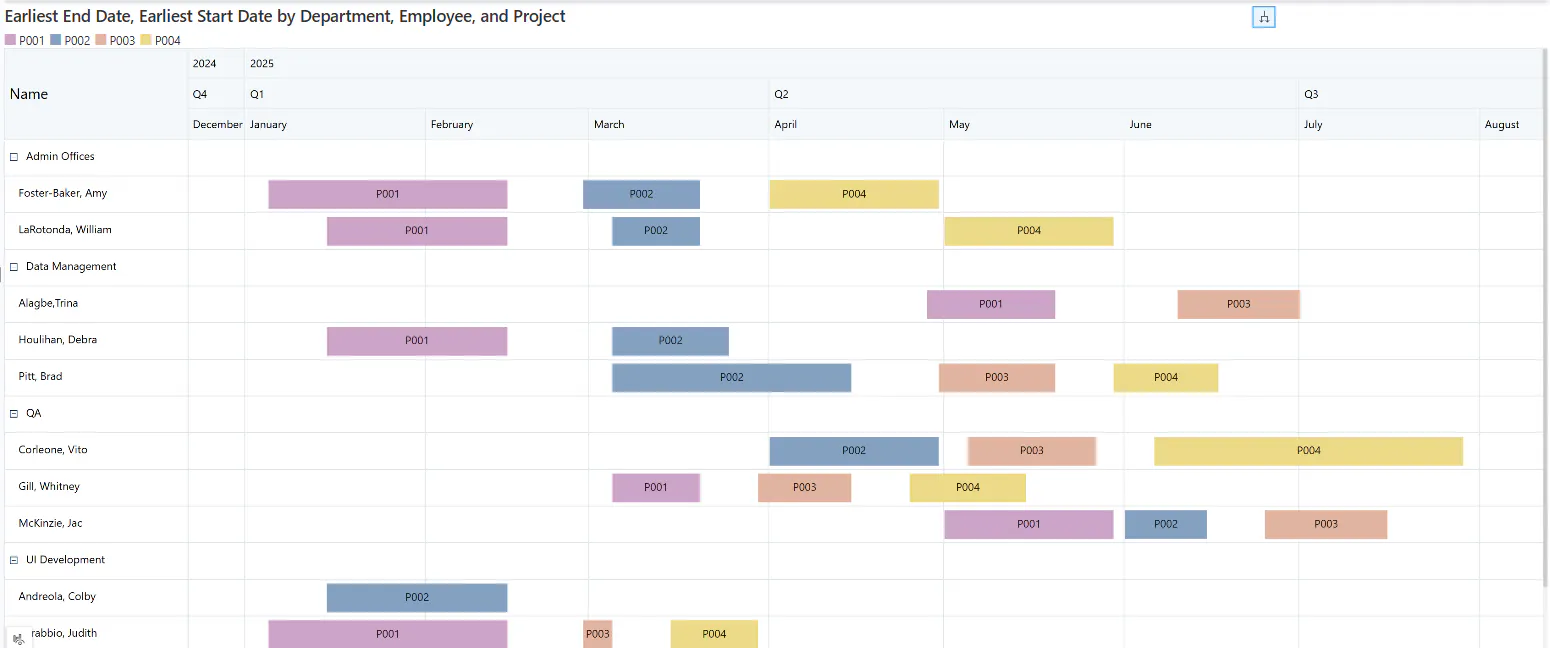
This option tries to accomodate the entire timeline, from the start date to the end date in the canvas at once.
ii) Scroll:
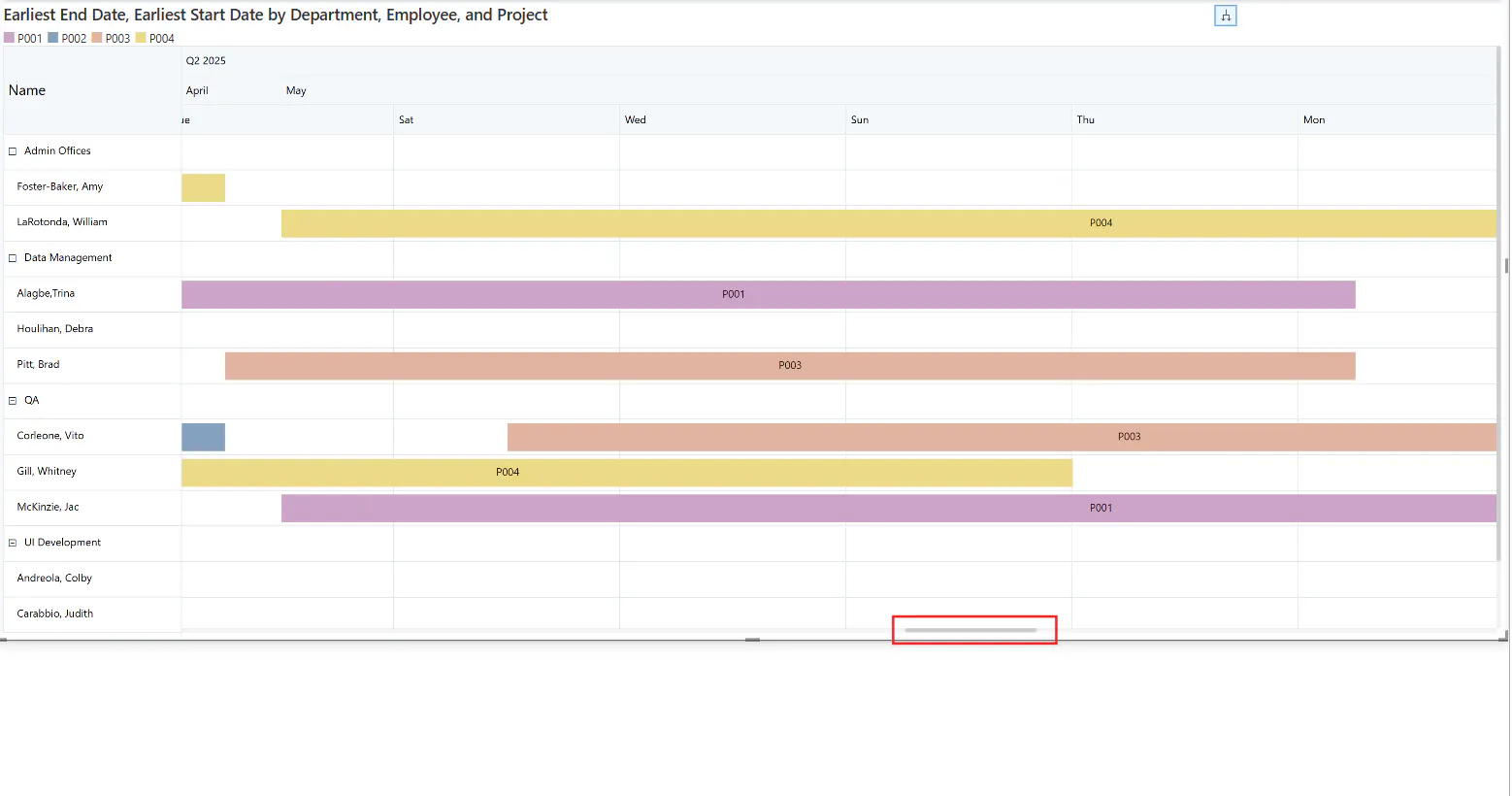
This option gives the user the option to scroll to navigate the fully expanded timeline.ii
iii) Zoom unit:
This option gives the users' the option to decide how much of the timeline they want to display at once in the canvas. For example, if you set the Zoom Unit as Month and the Zoom Range as 3, then three months will displayed at once with each scoll on the Gantt chart.
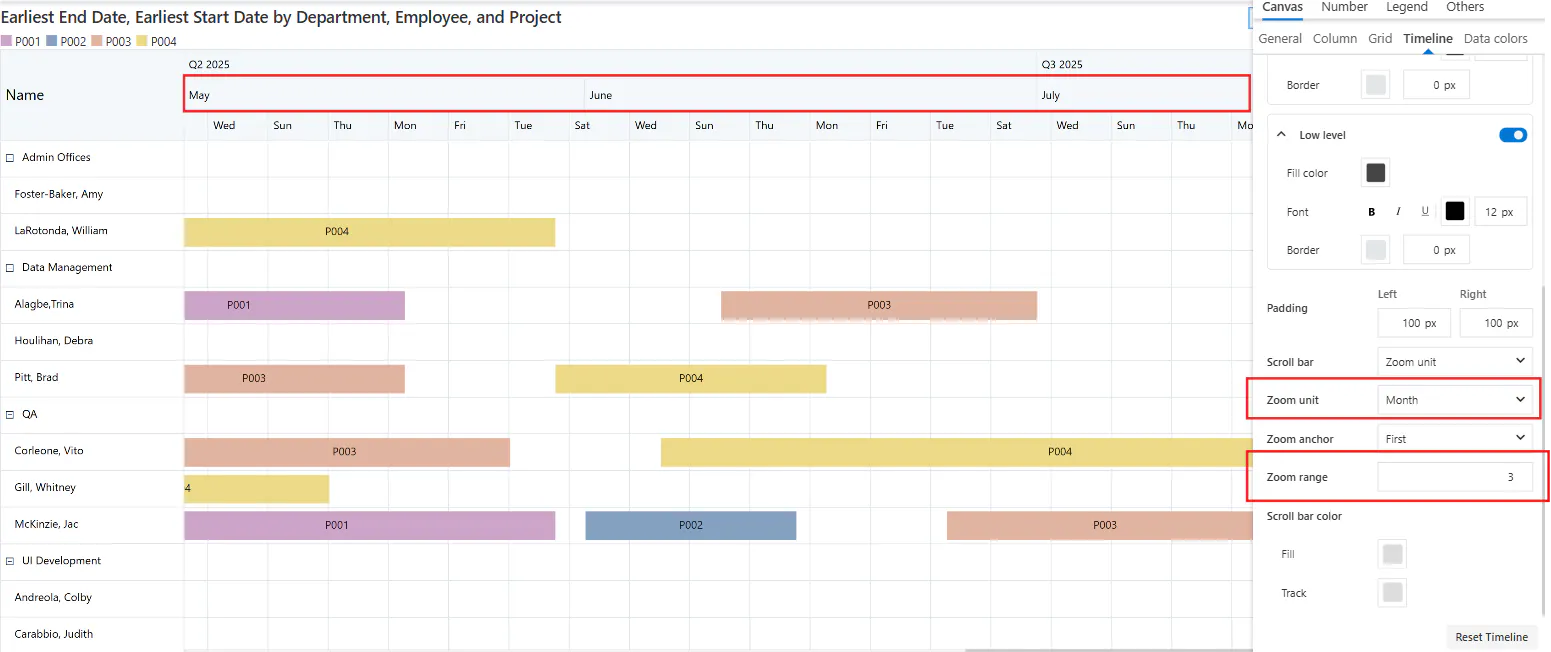
The Zoom Anchor option determines the starting point of the timeline. The user can scroll to view the rest of the Gantt chart. There are 3 Zoom Anchor options - a) First - displays the start of the timeline, b) Last - displays the end of the timeline, c) Day/Custom - displays the Gantt timeline with respect to the current date or a custom date that you can set from the date picker.
The users can also customize the Scroll bar by formatting the Scroll bar color option.
FAQs
1) Where can this feature be used?
This feature can be used in Power BI Desktop and in the edit mode of Power BI Service.
2) Why am I not able to display all of the Days in the Fit all Scroll bar option?
This is due to the size of the data (number of days) allowed to be displayed at once in the canvas when using the Fit all option. If you wish to display all the days, you can try out the Scroll or the Zoom Unit option instead of the Fit all option.