
Did you know that you can now choose to display either the First or the Last item in the hierarchy as a total or a sub-total?
Yes, the users can display the First and Last item in the hierarchy as a total and sub-total using the First and Last Aggregation function.
Where can this option be accessed?
This option can be accessed via the Insert tab -> Aggregation. This option will be available in Power BI Desktop as well as in the Edit mode in Power BI Service.

How to use this feature?
On clicking on the Aggregation feature, a pop-up window appears. The users can set the First and Last Aggregation to be displayed as subtotals.
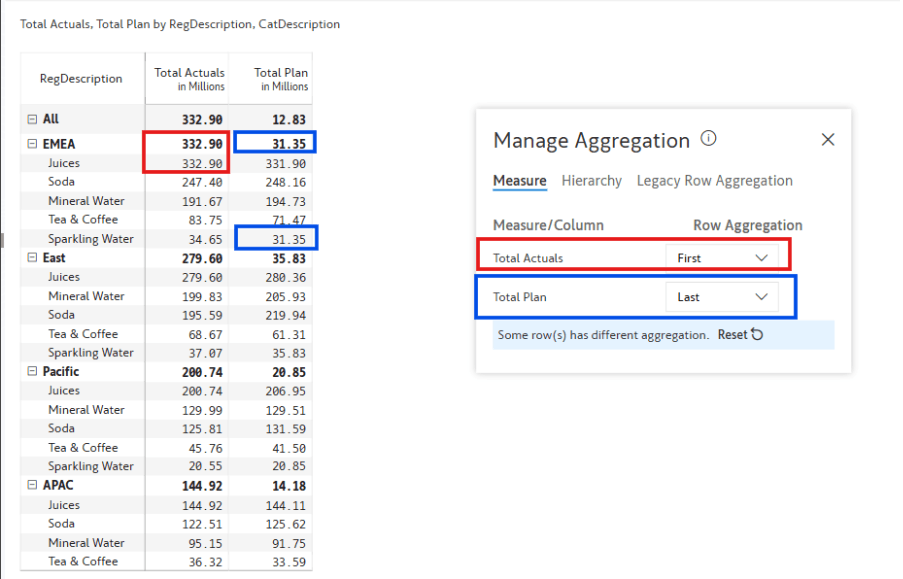
If the users wish to display, for example, Soda as the subtotal rather than Juices, they can simply reorder Soda to be the first child row and set the aggregation to First and it will be displayed as the subtotal.
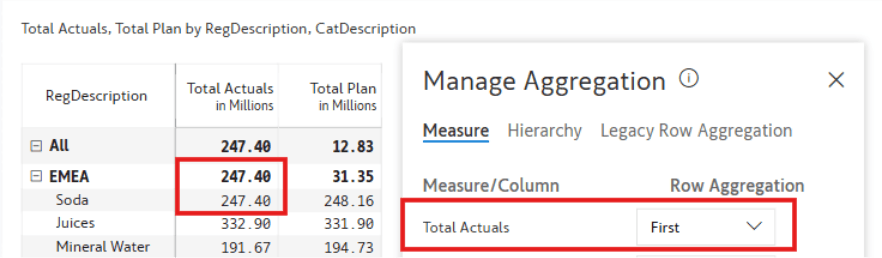
We hope this has shed some light on the First and Last Aggregation.
FAQs
Is there a way to display the specific hierarchy item as a total/sub-total?
There is no feature to display the specific hierarchy items as subtotal or total currently. However, you can drag and drop the specific item in the hierarchy using the row gripper to either the first or the last place in the sub-category and then use the First or Last Aggregation option to display them as the total or sub-total.